Colleague.AI Usability Study
Can K–12 teachers use an AI assessment platform without training? A usability study with five teachers found 14 issues, 6 of them blocking.
Overview
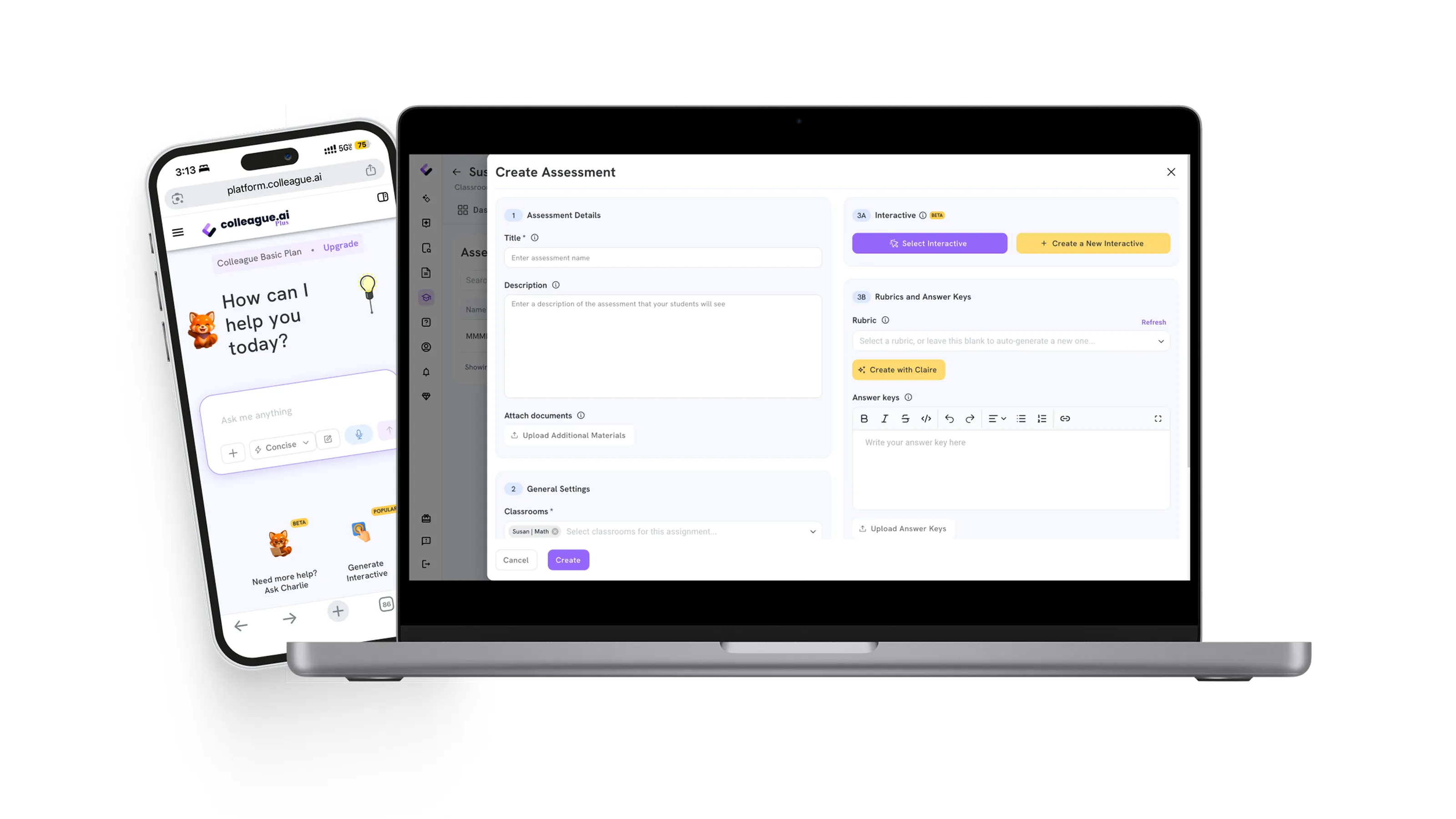
Colleague.AI helps K–12 teachers build assessments, write rubrics and grade with AI. New teachers couldn’t finish these tasks without a training session. Our team of four ran a moderated usability study with five Washington teachers, across three tasks and 24 steps. I organized the study, wrote the task script and questionnaires, analyzed the data, and wrote and presented the report to the client. We found 14 issues. Six stopped teachers from finishing a task, and all six sit where a task starts or ends.
- 14 issues across 3 workflows
- 6 blocked teachers from finishing a task
- 4 of 5 couldn’t tell if grades were saved
- Role
- UX Researcher
- Timeline
- Jan 2026 – Mar 2026
- Team
- Jessica Macias
- Sahana Narendran
- Willa Wei
- Mengying Wang (me)
- Skills
- Usability test planning
- Moderated think-aloud sessions
- Questionnaire design
- Severity rating and synthesis
- Research reporting
- Tools
- Zoom
- Google Forms
- Google Sheets
- Calendly
Problem
Colleague.AI is an AI platform for K–12 teachers. Teachers build an assessment, write a rubric and grade student work with an AI assistant called Claire. New teachers couldn’t get through these tasks on their own. Colleague.AI onboarded them with training sessions.
A new AI tool for tests
A teacher opens Colleague.AI to build a test, write a rubric and grade with AI. She has never used it before.
Where do the questions go?
The form asks for a description. She can’t tell if the AI writes the questions or she does.
The rubric opens somewhere else
She builds a rubric with AI. It opens in a new tab and never joins her test.
Booked into training
She can’t finish on her own. New teachers like her get a training session first.
New teachers needed training. The client wanted to know where the platform lost them.
Question 1
Navigation
How easily can teachers move through the platform?
Question 2
Learning
How quickly can they learn it?
Question 3
Obstacles
What gets in the way when they create, assign and grade?
Question 4
New vs. experienced
Does it feel easier once a teacher has used it before?
Study
We tested three core teacher tasks in a sandbox account. Before writing the script, we mapped each task step by step: 24 steps in all.
- 5K–12 teachers, grades 6–10
- 3 + 2new and experienced users
- 24steps across 3 tasks
Task 1 · 8 steps
Create an assessment
Draft an assignment and attach the existing General Rubric.
Task 2 · 8 steps
Create a rubric
Build a custom rubric with AI and publish the assignment.
Task 3 · 8 steps
Grade with AI
Run the AI Grader on a submission, then enter a final grade and feedback.
- Intro and consent
- Expected easeRated 1–7 before each task
- Task, thinking aloud
- Actual easeSingle Ease Question, 1–7
- Post-test survey4 ratings, 3 open questions
Five Washington teachers took part. Three were new to Colleague.AI and two had used it. They teach grades 6–10 in English, math and social studies, and all of them grade in Canvas.
Our team rotated four roles each session: moderator, timer and two note-takers. Note-takers logged each breakdown and each moment of delight with the Critical Incident Technique. We rated every issue by how far it set the teacher back, following Jeff Sauro’s three levels.
Severity
High
Stopped the teacher from finishing the task.
Severity
Medium
Slowed the teacher down or caused real frustration.
Severity
Low
A minor detour. The task still got done.
In analysis we compared what teachers said, what they did and how they rated each task.
Findings
Teachers hit 14 issues. Six stopped them cold.
- 3.4 / 7ease of Task 1, the hardest
- 4.2 / 7how easy to learn without training
- 1 of 5finished all three tasks
All six blocking issues sit at the first or last step of a task, where one feature hands off to the next. Pick a task to walk through its screens.
3 tasks · 24 steps · select a screen to enlarge it
Enter the assessment description
Set the status to active
Apply it to a classroom
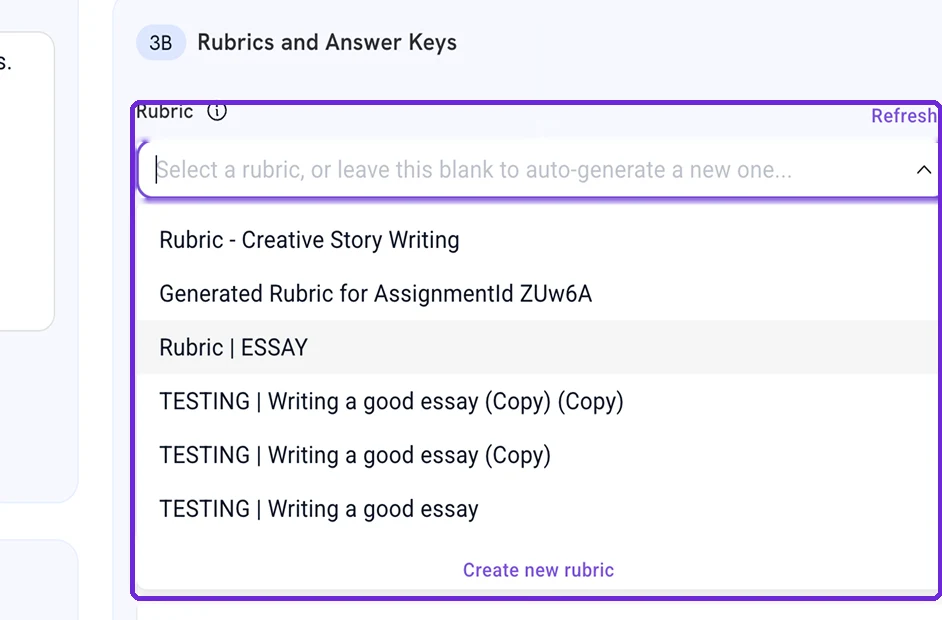
Set rubrics and answer keys
Use an existing rubric
Choose the essay rubric
Set answer keys
Set grading details
Initial friction finding the Assessment feature
Two teachers mistook the Teaching Aide for the Assessment feature. Both found the right one in the end.
Recommendation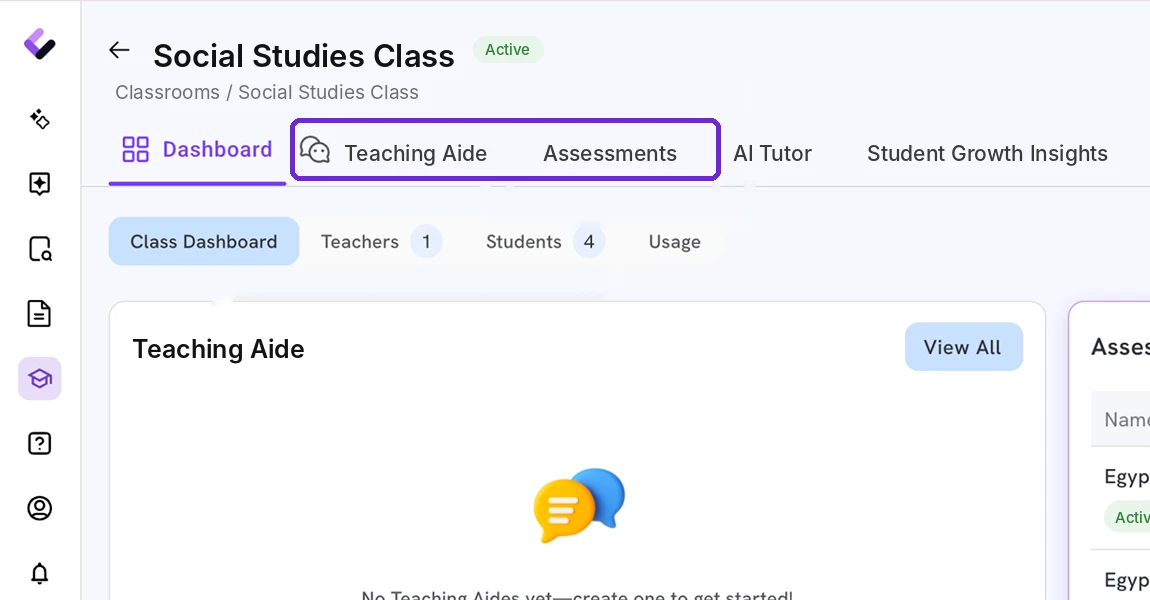
Unclear expectations from the Assessment feature
Some teachers expected the AI to write the questions. They typed what they wanted and left the answer key blank.
Recommendation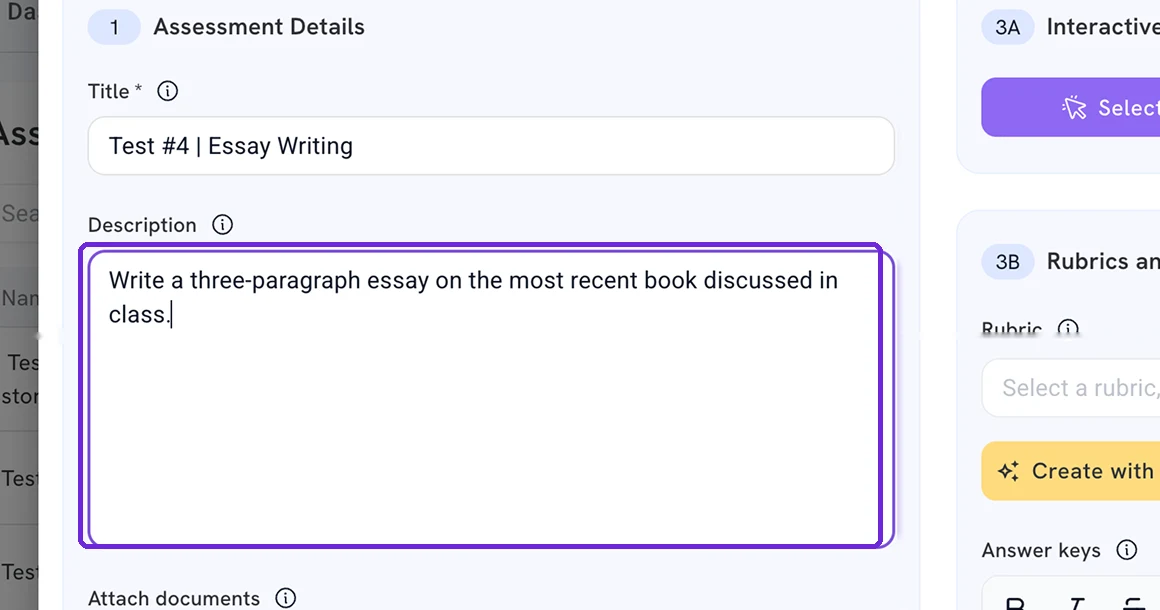
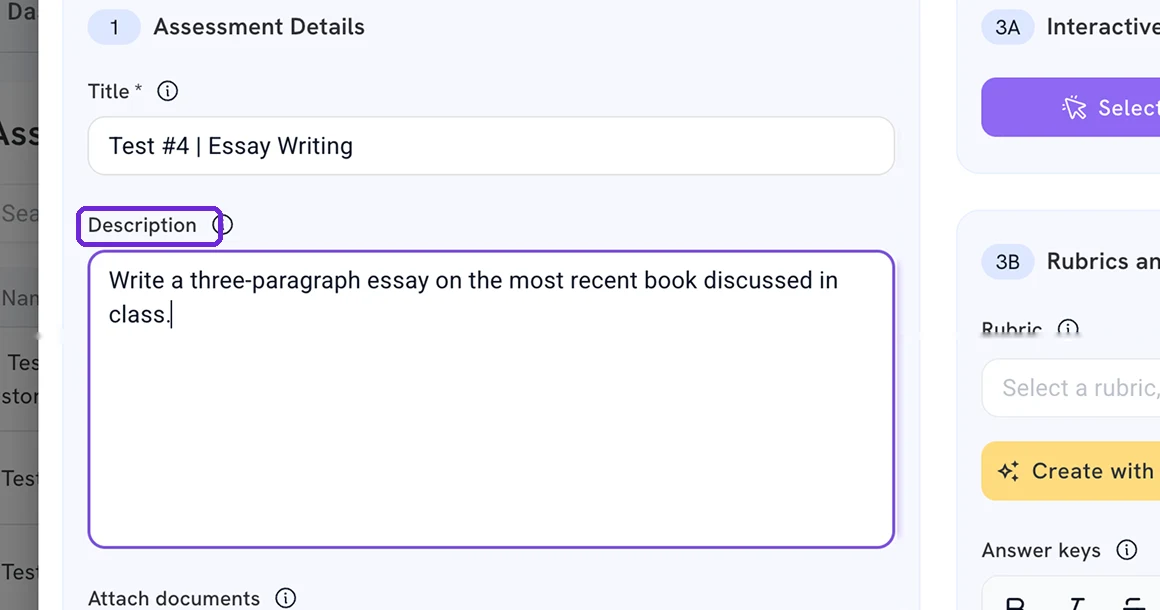
Unsure where to add questions
The field for questions is labeled “Description”. Teachers looked elsewhere before they tried it.
Recommendation“I gotta be honest, that was not clear that the Description is where my assessment questions would be.”
Not sure how to add the rubric
Teachers picked the General Rubric from the dropdown, then clicked “Create with Claire” as well.
Recommendation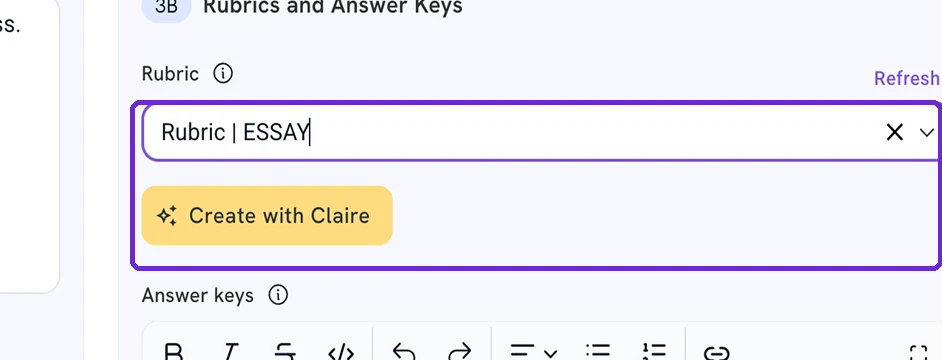
Unable to understand the “Include in Gradebook” setting
Every teacher skipped the toggle. After grading, they couldn’t find the grades in the gradebook.
Recommendation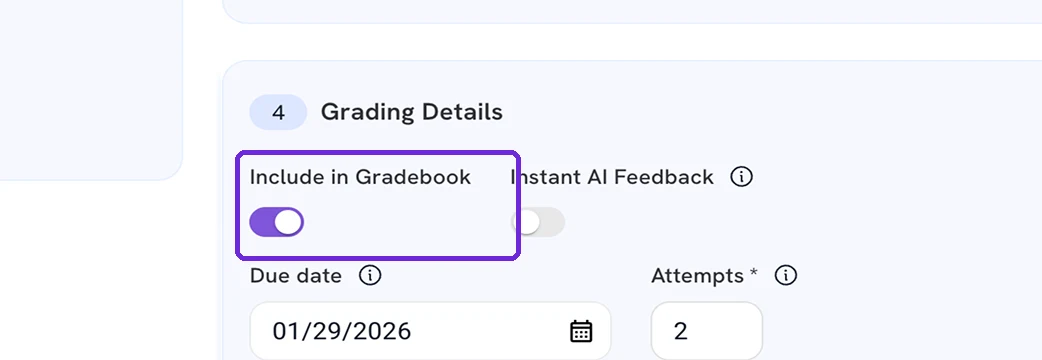
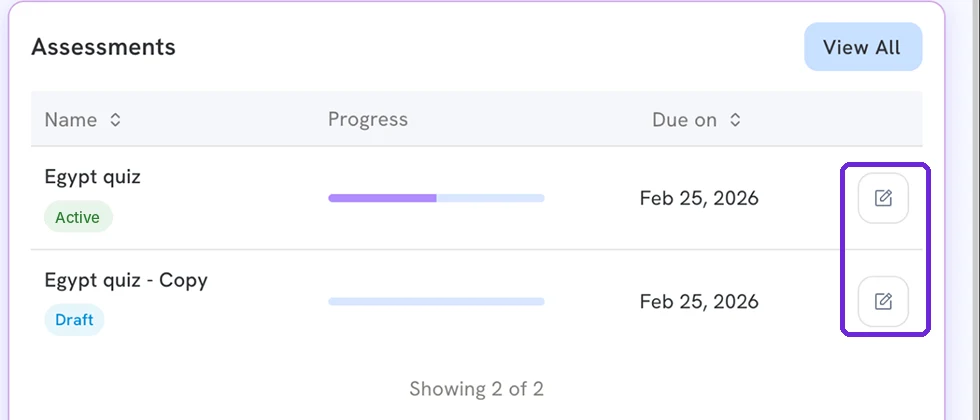
Unsure where to edit the assessment
Teachers clicked the assessment row to edit it, and the AI Grader opened. Most never noticed the pencil icon.
“That was not intuitive at all… If I wasn’t being assisted, I would have spent a lot of time clicking around mindlessly trying to find the document I just created”
Create a personalized rubric
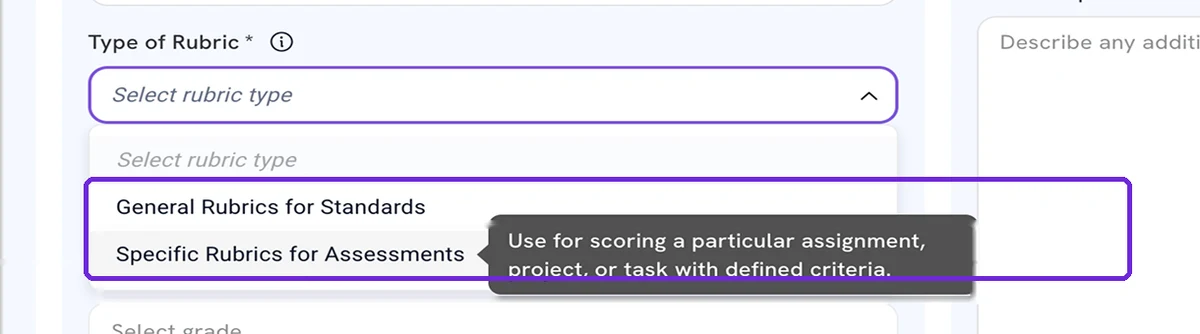
Choose specific rubrics for assessments
Input the assessment description
Select rating scales
Set a custom scale
Input other requirements
AI thinking
AI-generated rubric
Could not find the created rubric
The new rubric opened in another tab. Teachers expected it to attach itself and had to go back and select it again.
Recommendation“I would think the rubric would attach itself after making it.”
Did not understand the rating scales
Scales such as Bloom’s Taxonomy and Advancement Levels didn’t match the terms their districts use.
Recommendation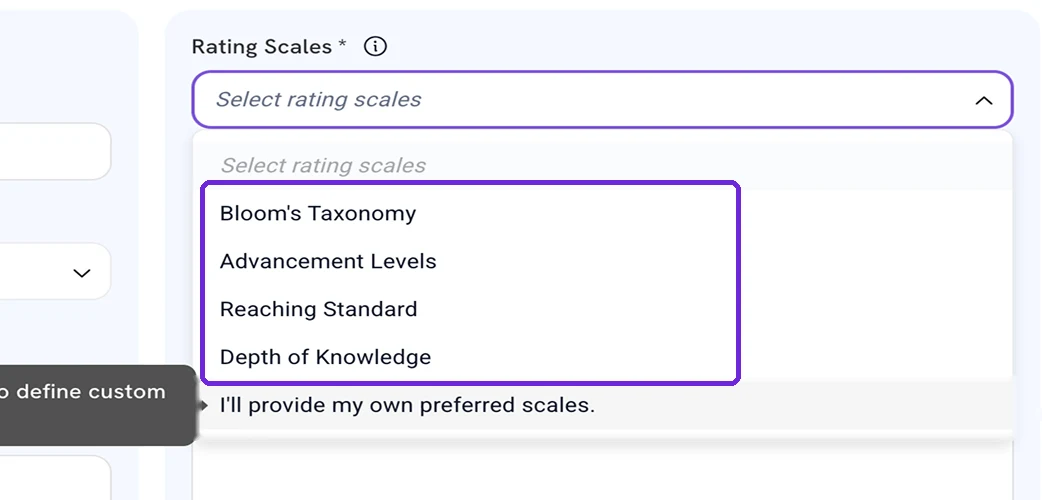
No system feedback after creating a rubric
When the rubric appeared, teachers looked for a sign it was saved. One tried to save it as a PDF.
Recommendation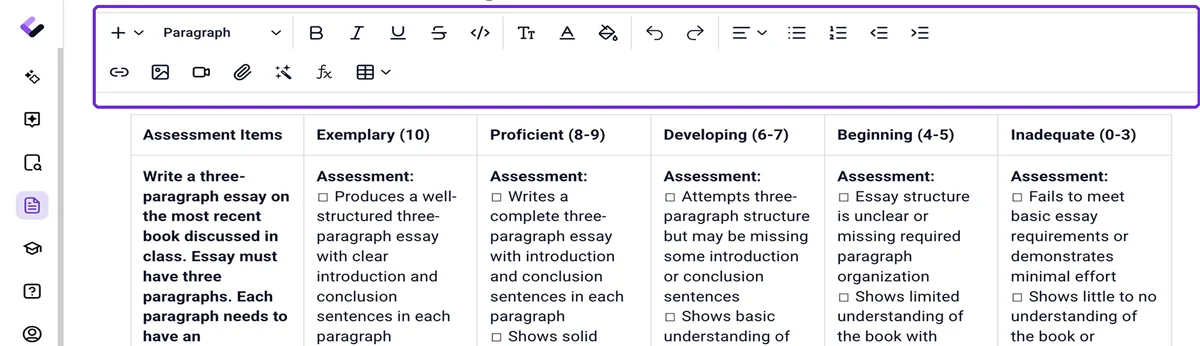
Confusion between general and specific rubrics
Teachers paused between “general” and “specific” rubrics. Few found the hover text that explains them.
Open the grading page
Select a student to grade
Input feedback
Input a final grade and run AI grading
Integrate the AI grader feedback
Check student growth insights
Open the grade book
Edit grades
Trouble finding the AI Grader
The teacher’s feedback box sits above the AI Grader. Teachers scrolled down to read the AI, then back up to write.
Recommendation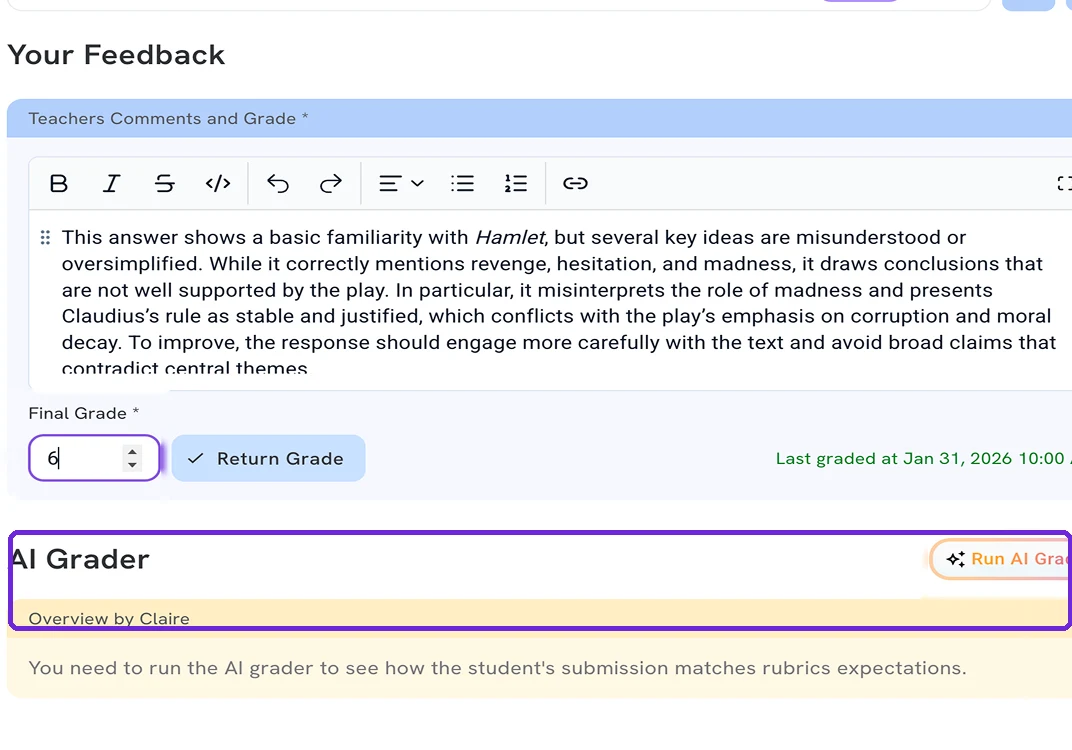
AI feedback needs student-facing language
The AI’s feedback was detailed and written in teacher language. Teachers expected to rewrite it for students.
Recommendation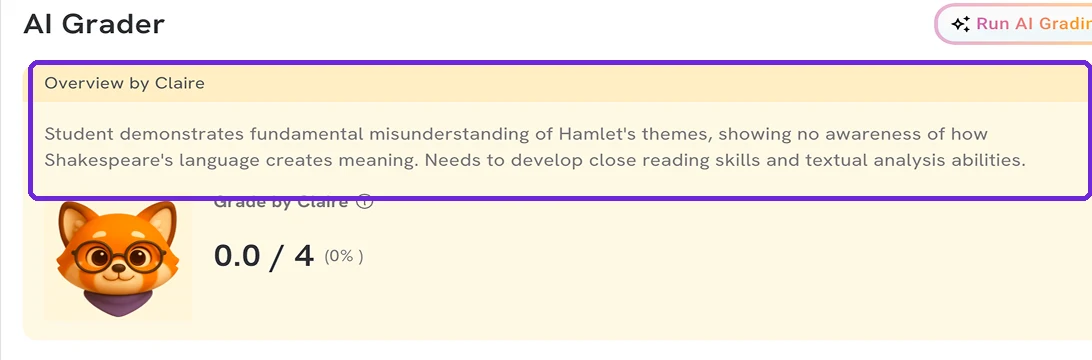
Desire to edit AI-generated feedback
Teachers double-clicked the AI feedback to edit it like a document. Nothing happened.
Recommendation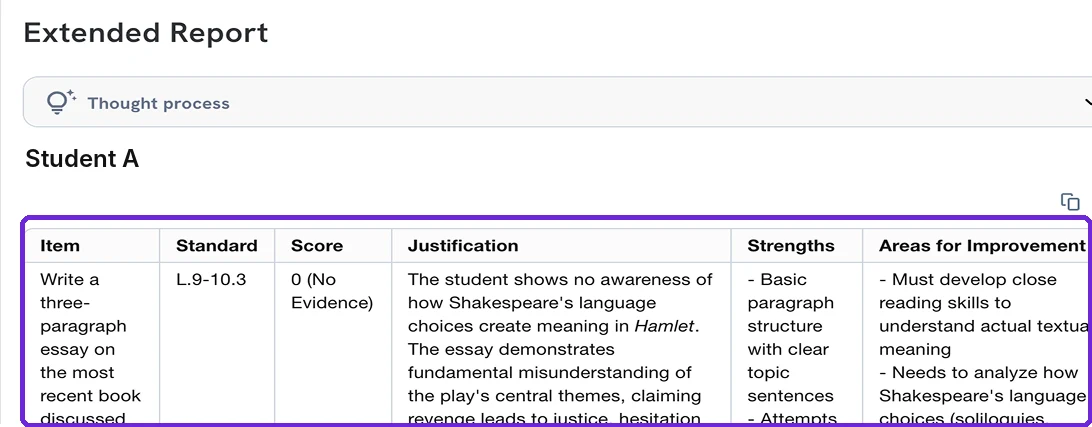
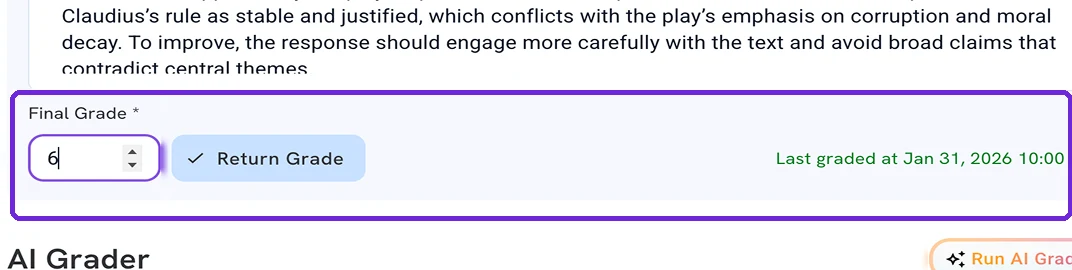
Saving grade and feedback
Grades save without any sign of it. Teachers searched for a Save button and worried students would never see their work.
Recommendation“I would feel a lot more reassured if I could click Save somewhere.”
What worked
The AI Grader’s output landed well. Three teachers praised how detailed and accurate its feedback was, including teachers who started out skeptical. The praise came more from English and social studies teachers than from math teachers.
Teachers
They liked the AI’s grading. They wanted it in their students’ words.
“Seeing an answer on the left and then having it help me grade on the right, that page is set up really well. That made a lot of sense.”
“The feedback is very teacher-facing. I know my 8th-grade students would not be able to understand this language”
Insights
The 14 issues came from three causes.
Unclear AI role 5 gaps
Teachers couldn’t tell what the AI would make, or how to change what it made.
Show the AI’s part.
Every field says what the teacher adds and what the AI adds. AI output stays editable.
Broken hand-offs 5 gaps
Each feature works on its own. Teachers got lost moving between them.
Carry the work forward.
A new rubric attaches itself. Edit and gradebook settings sit where teachers look for them.
Not like Canvas 4 gaps
All five teachers grade in Canvas. They looked for a Save button and their district’s terms.
Match habits they already have.
Confirm every save. Use the rating scales districts use.
Recommendations
We ranked our recommendations by priority for the product team. Some are a new label. Others change the order of the flow.
High priority7
Rename “Description” to “Add questions”
Add one line of helper text that says the teacher writes the questions here.
Today 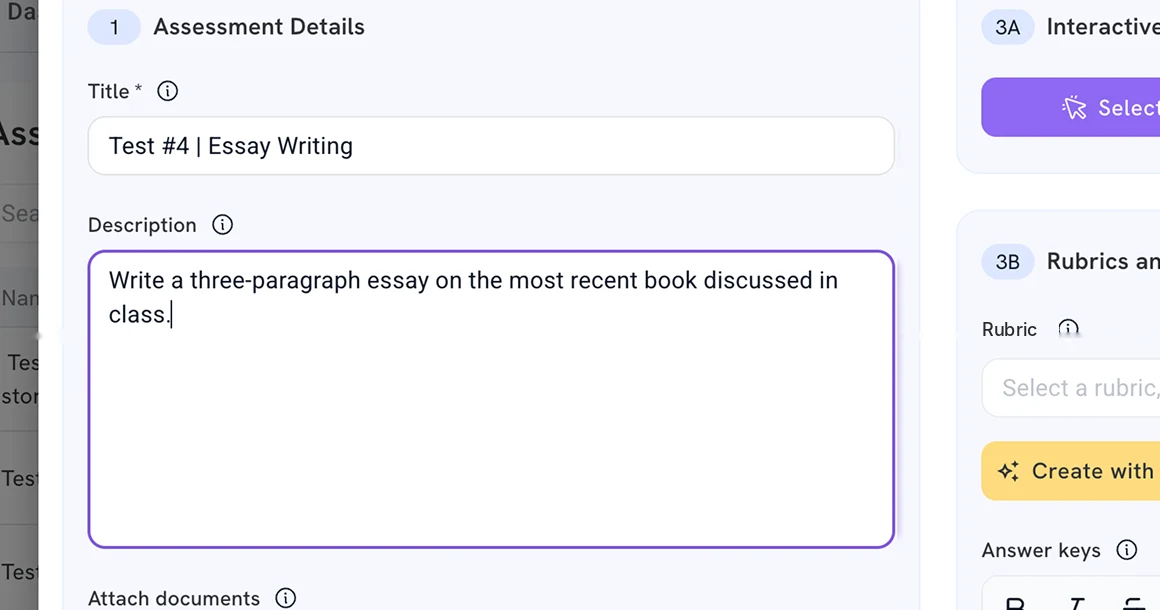
Concept 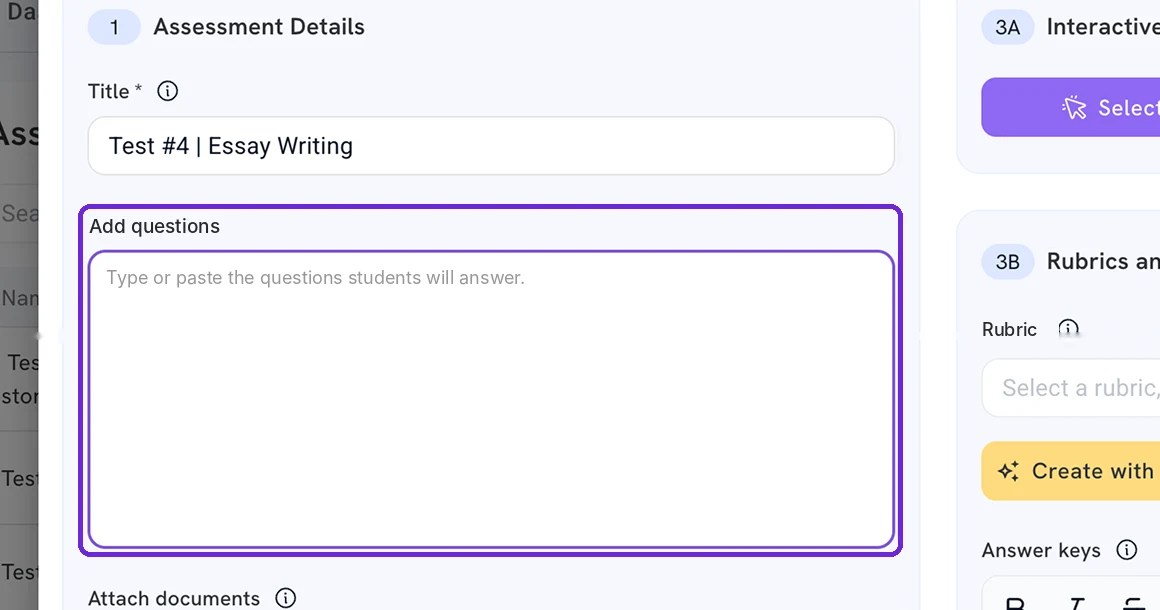
Label says what goes here, with a one-line hint.
Offer the new rubric right away
After a rubric is made, show “Use this rubric for your assessment” and confirm when it’s attached. Let teachers keep refining it with AI.
Today 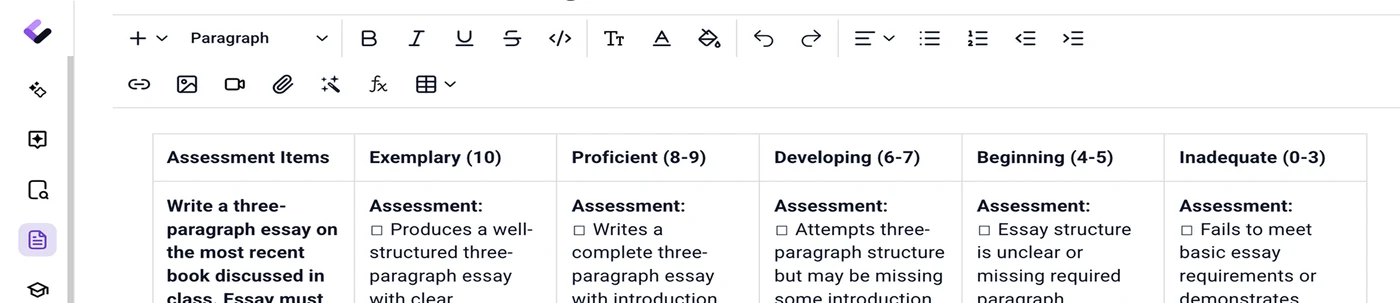
Concept 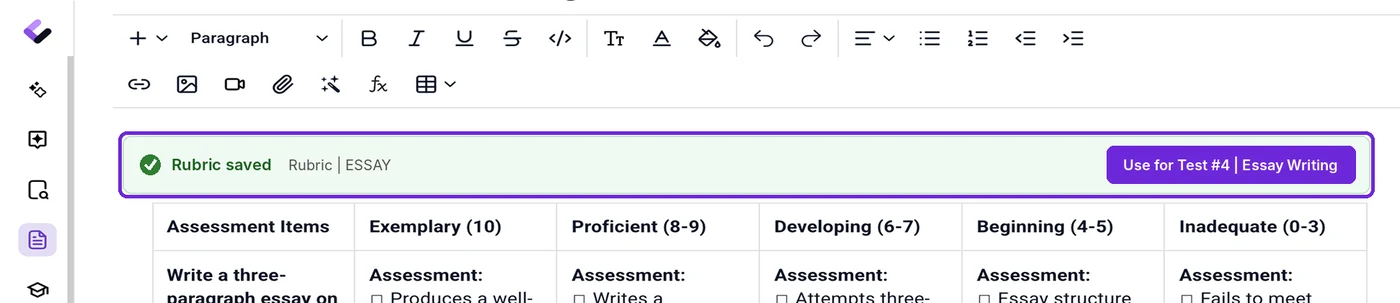
A save message and a one-click way to attach the rubric.
Put the AI Grader first and add Save
Move the AI Grader above the teacher’s feedback. End the flow with a clear button to save and send to students.
Today 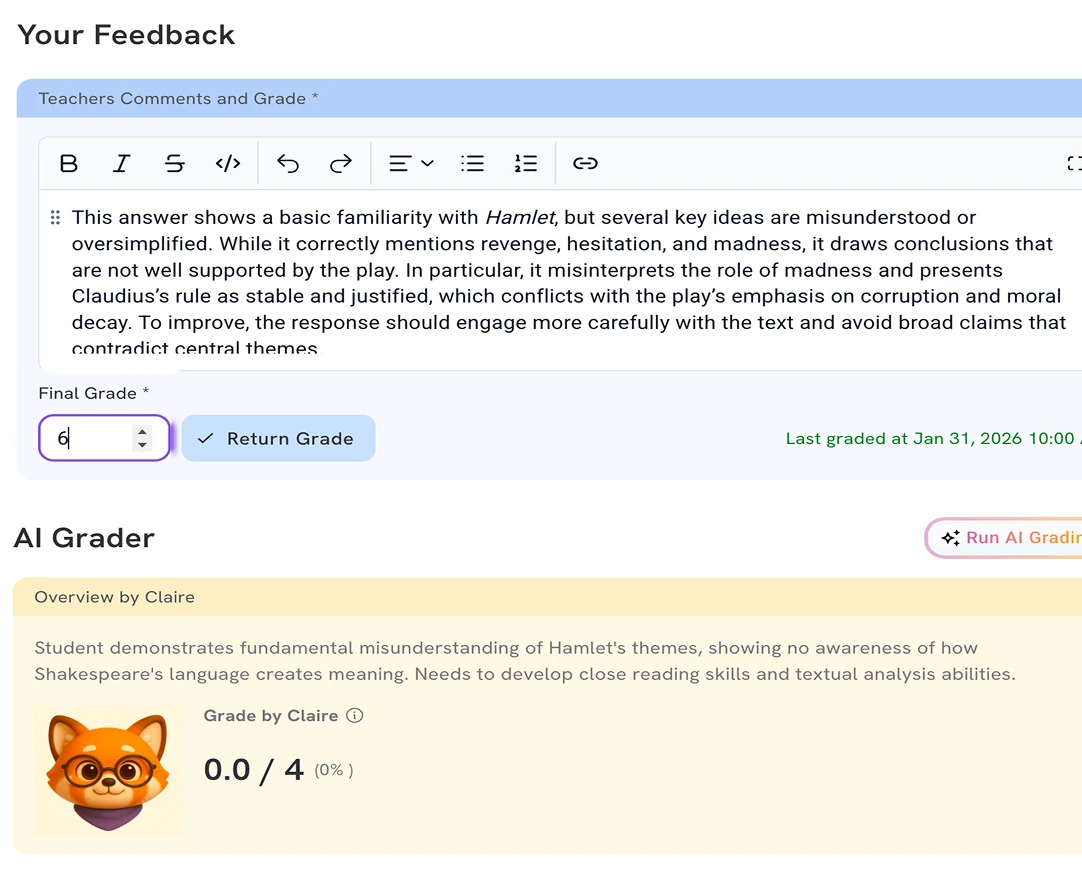
Concept 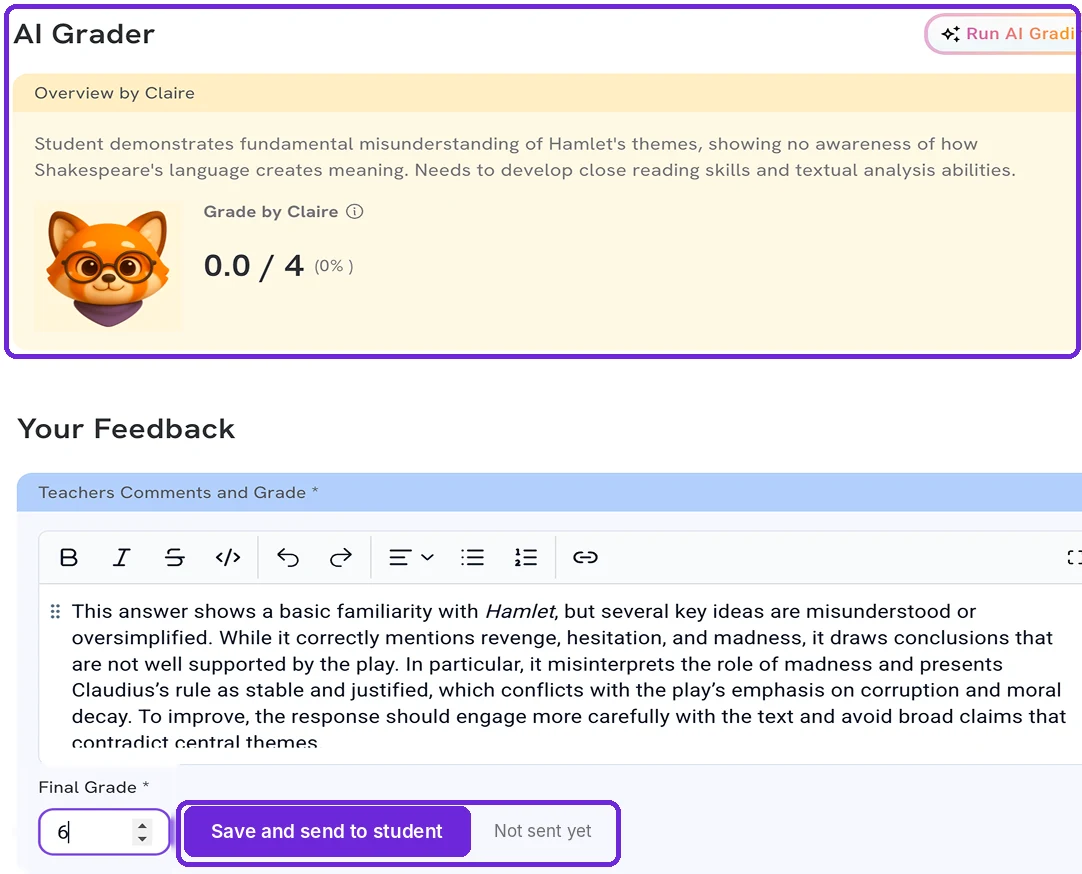
AI results first, then the teacher’s feedback and a clear Save.
Put “Create a new rubric with Claire” in the dropdown
Teachers then pick one option from one list.
FixesA4
Today 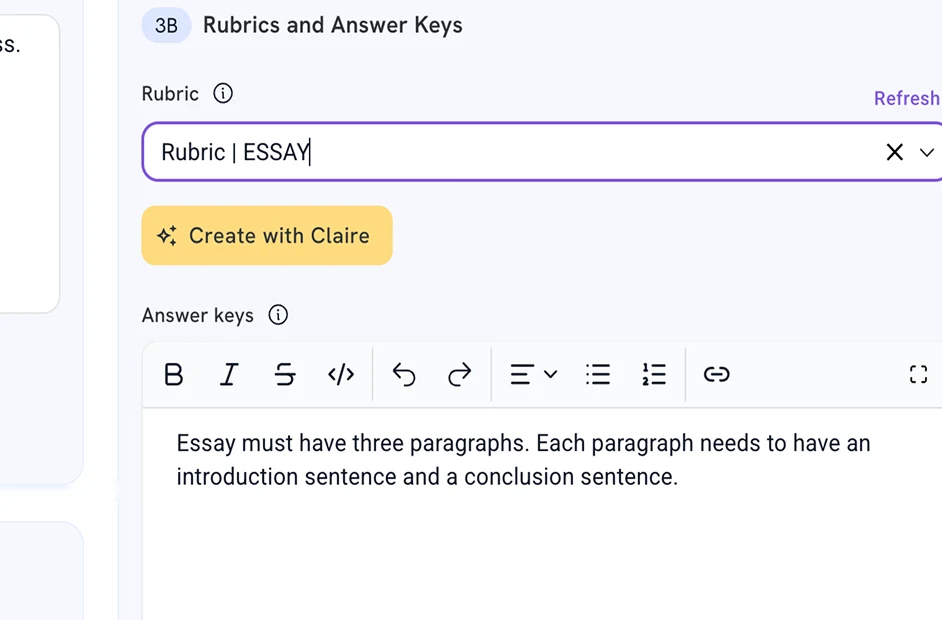
Concept 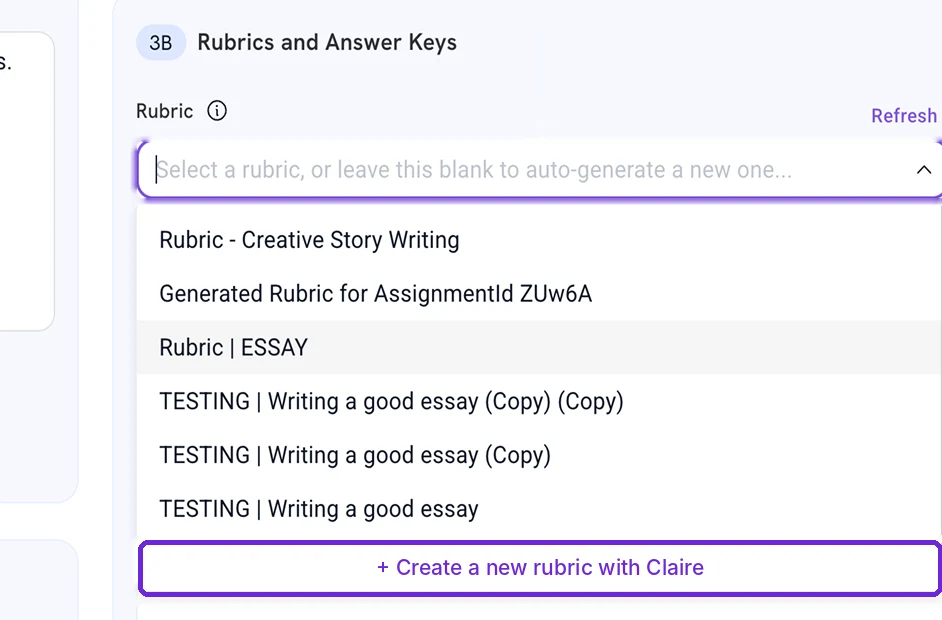
One list, one choice. The separate button is gone.
Explain “Include in Gradebook”
Say what it does next to the toggle, or move it to grading. Placement needs another round of testing.
FixesA5
Today 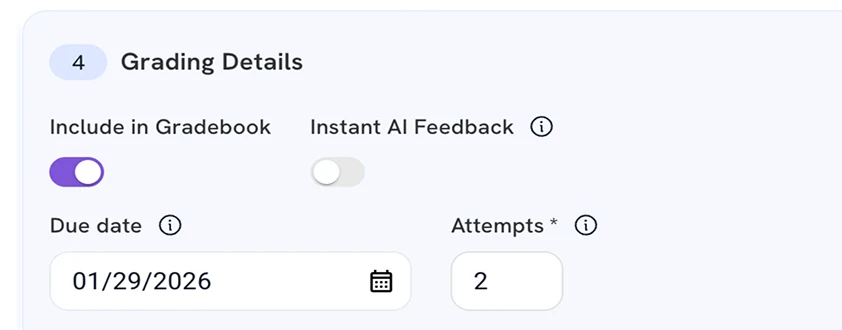
Concept 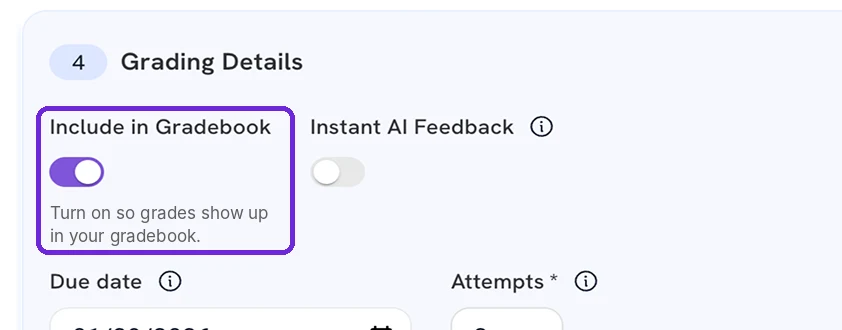
One line explains what the toggle does.
Rethink the default rating scales
Research the scales districts use and tailor options by subject.
FixesR2
Today Today
Low priority2
Study why Assessment is hard to find
Two teachers confused it with the Teaching Aide. The cause needs more research.
FixesA1
Outcome
We delivered the usability report and presented it to Colleague.AI’s Head of Product & Research and its Product Designer. They focused on assessment creation and AI grading. I don’t yet know which fixes they shipped.
Takeaways
Walk every role before the first session
We wrote the tasks from the teacher’s side and missed the “Include in Gradebook” toggle ourselves. All five teachers missed it too. We caught it when a student account showed no grades. Now I run each task end to end, from every role, before testing.
Pilot with someone who matches the user
Our pilot participant didn’t closely match our teachers. The script and questionnaire changed after the first sessions, so early sessions ran a little differently. My next pilot will be a working teacher.
What five sessions can’t tell us
Five teachers show where people get stuck. They can’t show how often it happens. Math teachers also found the AI Grader less useful than English and social studies teachers did, so subject may matter. A next round would test the fixes with more teachers per subject and track task completion.